

Meta Title: How to Create a Strong and Secure Password in 2026
Meta Description: Learn how to create a strong and secure password, avoid common password mistakes, use password managers, and protect your online accounts from unauthorized access.
Focus Keyword: how to create a strong and secure password
Secondary Keywords: strong password tips, secure password, password security, how to make a strong password, password manager, online account security, cybersecurity for beginners
Suggested URL Slug:/how-to-create-a-strong-and-secure-password/
Introduction
Passwords are one of the simplest ways to protect your online accounts, but they are also one of the easiest security measures to get wrong.
Most people use passwords every day for email, social media, banking, shopping, work accounts, cloud storage, websites, and mobile applications. The problem is that convenience often comes before security. A person may use a short password, reuse the same password on several websites, or choose something easy to guess, such as a name, birthday, phone number, or favorite word.
A weak password can create a much bigger problem than simply losing access to one account. If the same password is used across multiple services and one website experiences a data breach, attackers may try those stolen credentials on other websites.
The good news is that creating a strong password does not have to be complicated.
A secure password should be difficult for other people to guess and difficult for automated systems to crack. It should also be unique to the account where it is used.
In this guide, you will learn how to create a strong and secure password, what makes a password weak, how long your passwords should be, why password reuse is dangerous, how password managers can help, and what additional steps you can take to protect your accounts.
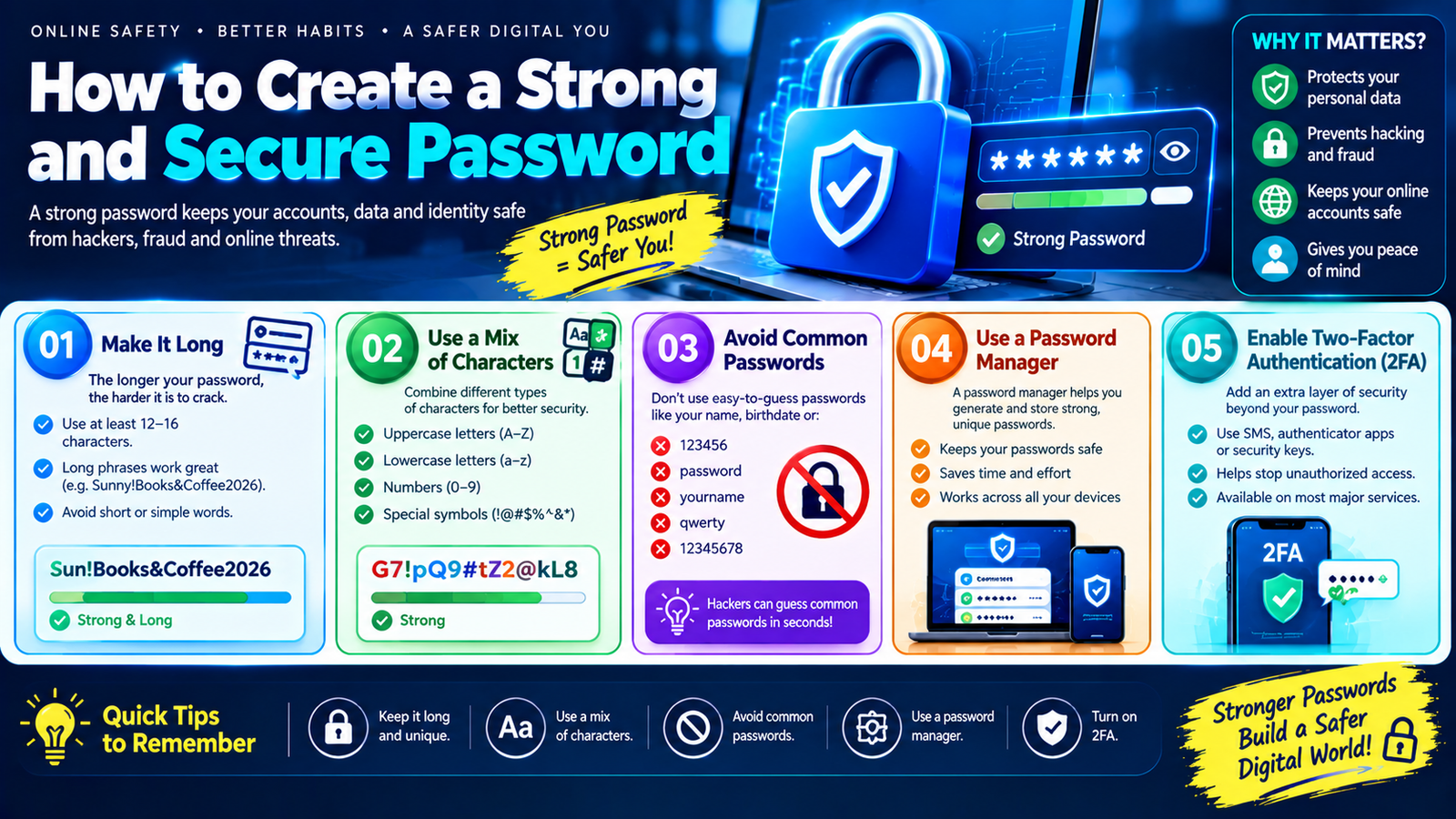
What Makes a Password Strong and Secure?
A strong password generally has several important characteristics.
It should be:
- Long enough to resist guessing and automated attacks
- Unique to one account
- Difficult to associate with you personally
- Not based on common words or predictable patterns
- Different from passwords you have used elsewhere
- Stored securely rather than written in publicly accessible places
Password length is particularly important.
For example, a short password such as:
Pakistan123
may look reasonably complicated because it contains letters and numbers. However, it follows a predictable pattern and includes a common word and number combination.
A longer password or passphrase can provide much more protection.
For example:
River-Coffee-Planet-Window-72
is longer and less dependent on a simple predictable pattern.
However, don’t use that exact example as your real password. Public examples should remain examples only.
Why Password Length Matters
Many people believe that a password must contain a confusing mixture of uppercase letters, lowercase letters, numbers, and symbols to be secure.
Those features can help, but length is extremely important.
A longer password generally provides a larger number of possible combinations. This makes automated guessing more difficult.
Consider the difference between:
Blue123
and:
Blue-River-Coffee-Window-92
The second password contains considerably more characters and uses multiple words.
For important accounts, aim for a password that is long, unique, and unpredictable.
When a website or service provides its own password requirements, follow those requirements. Some services may require certain character types or impose maximum lengths.
Password vs. Passphrase: Which Is Better?
A passphrase is a password made from several words.
Instead of trying to remember something like:
X7@pL9!q
you might use a longer combination of unrelated words.
For example:
Mountain-Lamp-Orange-River-Cloud
Again, this is only an example and should not be copied.
Passphrases can be easier to remember while still being difficult to guess when they are sufficiently long and unpredictable.
A Good Passphrase Should:
- Use several words
- Be reasonably long
- Avoid famous quotations
- Avoid common phrases
- Avoid personal information
- Avoid predictable sequences
- Be unique to the account
Don’t simply take a sentence that everyone knows and add a number to the end.
For example:
IlovePakistan123
may be easy to remember, but it is also based on a common phrase and should not be considered a strong password simply because it contains uppercase letters and numbers.
Avoid Personal Information in Passwords
One of the biggest password mistakes is using information that other people can easily discover.
Avoid using:
- Your name
- Your children’s names
- Your partner’s name
- Your birthday
- Your phone number
- Your address
- Your city
- Your school
- Your workplace
- Your pet’s name
- Your favorite sports team
- Your favorite celebrity
- Your vehicle number
- Your username
For example, if someone’s social media profile shows that they love football and their favorite team is publicly visible, creating a password around that information is not a good security strategy.
Cybercriminals can use information from public profiles, leaked databases, and other sources to make guesses more targeted.
The safest approach is to choose passwords that have no obvious connection to your personal life.
Never Reuse the Same Password
Password reuse is one of the most important security problems to avoid.
Imagine that you use the same password for:
- Gmail
- An online store
- A work account
Now imagine that the online store suffers a data breach and your email address and password are exposed.
An attacker may try the same combination on other popular services.
This technique is commonly known as credential stuffing.
The problem isn’t necessarily that every website has been hacked. The problem is that one compromised password may unlock several other accounts.
The Better Approach
Use a different password for every important account.
For example:
| Account | Password Strategy |
|---|---|
| Unique password | |
| Social media | Unique password |
| Banking | Unique password |
| Shopping | Unique password |
| Work | Unique password |
| Cloud storage | Unique password |
You don’t need to memorize dozens of complicated passwords manually. A password manager can help.
What Is a Password Manager?
A password manager is a tool designed to securely store and manage your passwords.
Instead of remembering dozens of passwords, you typically remember one strong master password or use another secure authentication method supported by the password manager.
A password manager can often:
- Generate random passwords
- Store passwords
- Fill login forms
- Detect weak or reused passwords
- Help you update compromised passwords
- Synchronize passwords across supported devices
- Store other sensitive login information
This can make good password security much easier.
Why Password Managers Are Useful
Suppose you have 50 online accounts.
Creating and remembering 50 unique, long passwords would be difficult for most people.
A password manager can generate passwords such as:
Qv8!rT2#Lm7@xP9$wK
for different accounts and store them securely.
You don’t need to memorize every password.
Instead, you protect the password manager itself with a strong master password and appropriate security features.
How to Create a Strong Password Step by Step
If you’re creating a new password manually, use the following process.
Step 1: Make It Long
Start with a reasonably long password or passphrase.
Avoid extremely short passwords.
Step 2: Don’t Use Personal Information
Don’t use your name, birthday, phone number, or other publicly available information.
Step 3: Avoid Common Passwords
Don’t use passwords such as:
123456passwordqwertyadminwelcome123456789password123
These are examples of predictable choices and should be avoided.
Step 4: Make It Unique
Don’t copy the password from another account.
Step 5: Consider a Password Manager
If you struggle to create unique passwords, let a reputable password manager generate them for you.
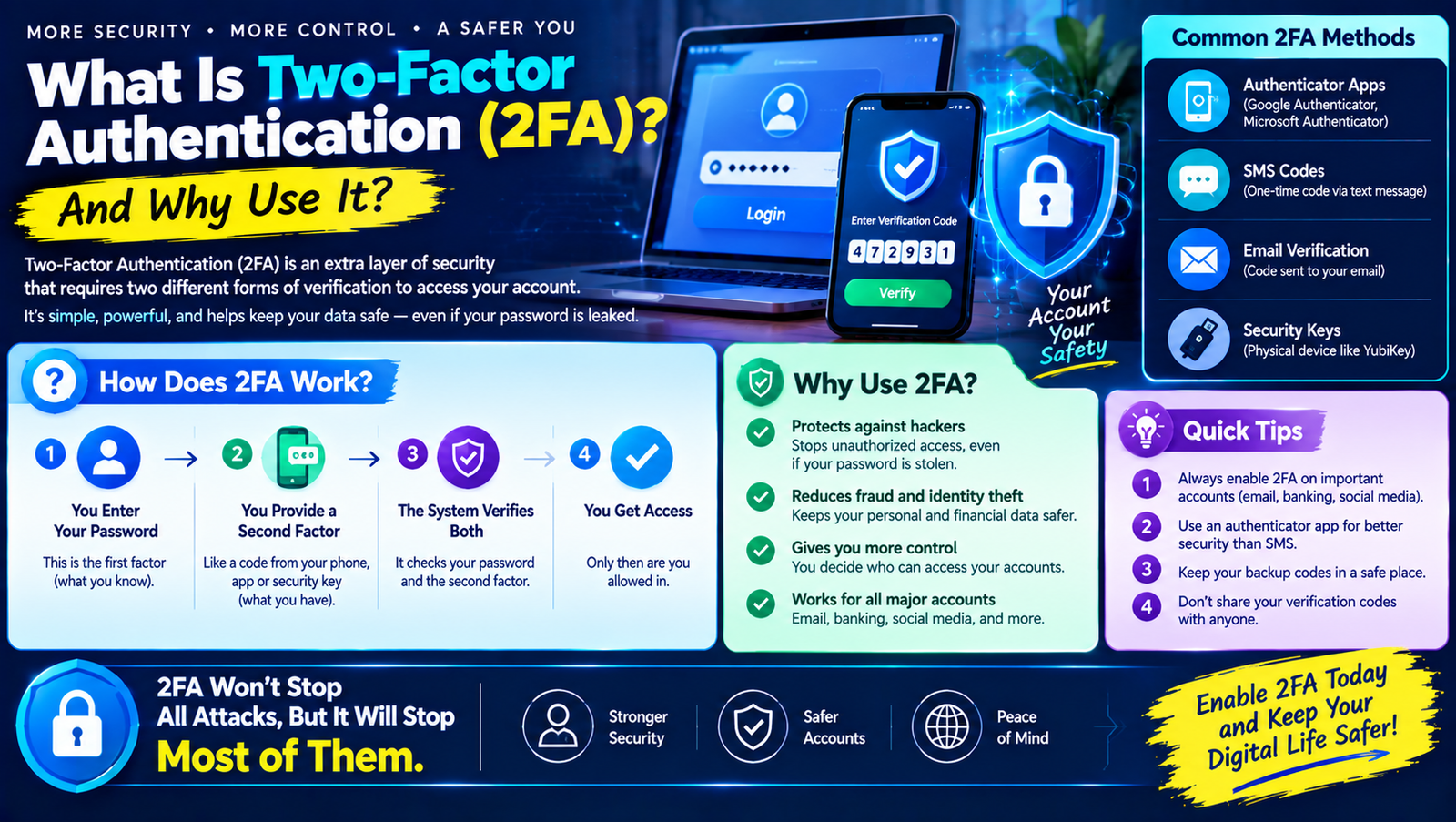
Step 6: Turn On Multi-Factor Authentication
A strong password is important, but it should not be your only layer of security.
Enable two-factor or multi-factor authentication whenever an account supports it.
Should You Change Your Password Regularly?
Changing passwords automatically every few weeks may sound like a good security practice, but constantly changing passwords can sometimes encourage people to create predictable variations.
For example:
Summer2026!
then:
Summer2027!
then:
Summer2028!
This isn’t a useful security strategy if the underlying password remains predictable.
A better approach is to use a strong, unique password and change it when there is a reason to do so, such as:
- You suspect the password was exposed
- A service reports a security breach
- You accidentally shared the password
- Someone else may have accessed your account
- You used the password on an unsafe or compromised website
- A security provider recommends changing it
For important accounts, monitor security alerts and respond promptly when there is evidence of compromise.
Don’t Share Your Password
Your password should generally be treated as private information.
Avoid sending passwords through:
- Messenger
- Social media
- Public comments
- Shared documents
- Screenshots
Be particularly careful when someone contacts you and asks for your password.
A legitimate service should not normally need you to send your existing password to a random person through chat.
If someone claims to be from a company and asks for your password, verify the request through the company’s official support channel.
Be Careful With Password Reset Links
Password security isn’t only about the password itself.
Attackers may try to trick you into revealing login information through fake password-reset messages.
For example, you might receive an email saying:
“Your account will be permanently deleted today. Click here to verify your password.”
The message may look official but lead to a fake website.
This is a common phishing technique.
Before clicking a password-reset link:
- Check the sender.
- Look carefully at the website address.
- Don’t enter your password into an unfamiliar website.
- If you’re unsure, open the official website directly instead of clicking the message link.
- Check your account’s security page for genuine notifications.
Use Multi-Factor Authentication
A strong password is only one part of account security.
Multi-factor authentication (MFA) adds another verification step.
Depending on the service, this might involve:
- An authenticator app
- A security key
- A passkey
- A verification code
- A biometric method
- Another trusted device
The basic idea is simple: even if someone obtains your password, they may still need another factor to access the account.
This is especially important for:
- Email accounts
- Financial accounts
- Work accounts
- Cloud storage
- Social media accounts
- Password managers
Your email account deserves particular attention because it may be used to reset passwords for many other accounts.
Consider Passkeys Where Available
Passkeys are another modern approach to account authentication.
Instead of relying on a traditional password, passkeys can use cryptographic credentials associated with your device or password manager.
Depending on the service and device, authentication may involve:
- Fingerprint
- Face recognition
- Device PIN
- Screen lock
- Security key
One advantage of passkeys is that they can help reduce exposure to traditional password-based phishing.
If a service you use supports passkeys, review its official documentation to understand how the feature works and whether it fits your needs.
Don’t Save Passwords in Unsafe Places
Writing a password on a small piece of paper and leaving it beside your computer is obviously risky.
But digital copies can also create problems.
Avoid storing passwords in:
- Public Google Docs
- Shared spreadsheets
- Unprotected text files
- Social media messages
- Public notes
- Screenshots
- Desktop files with obvious names
If you need to store many passwords, consider using a reputable password manager.
If you use browser-based password storage, make sure your browser account itself is protected with strong authentication.
What About Browser Password Managers?
Modern browsers can offer password-saving and password-generation features.
These tools can be useful because they make it easier to create and use unique passwords.
If you use a browser password manager:
- Protect your browser account
- Use strong device security
- Enable available MFA
- Keep your browser updated
- Don’t save passwords on shared computers
- Review saved passwords periodically
- Remove passwords from devices you no longer control
Never save sensitive login credentials on a public or shared computer unless you fully understand the security implications.
Common Password Mistakes to Avoid
Here are some mistakes that can weaken your account security.
| Mistake | Why It’s Risky |
|---|---|
Using 123456 | Extremely predictable |
| Using your birthday | Personal information can be discovered |
| Reusing passwords | One breach can affect multiple accounts |
| Using your name | Easy to associate with you |
| Sharing passwords | Others can access your account |
| Using short passwords | Easier to guess or crack |
Adding only 123 | Predictable modification |
| Using public information | Attackers can use it for guessing |
| Saving passwords in plain text | Anyone accessing the file may see them |
| Ignoring security alerts | Possible compromise may go unnoticed |
How to Create a Memorable Passphrase
Some people prefer memorable passphrases rather than random passwords.
One approach is to select several unrelated words and combine them with appropriate separators.
For example:
Forest-Lemon-Window-Planet-Coffee
Don’t use this exact phrase. Instead, create your own combination.
You can make it easier to remember by imagining a strange story connecting the words.
For example:
Imagine a forest containing a giant lemon, next to a window, looking toward a planet, while someone drinks coffee.
The unusual mental picture can make the passphrase easier to remember.
However, for maximum convenience and uniqueness across many accounts, a password manager with randomly generated passwords is often more practical.
Strong Passwords for Different Types of Accounts
Not every account has the same level of importance.
Your most sensitive accounts deserve particular attention.
Your email account is extremely important because it may be used to reset other passwords.
Use:
- A unique password
- MFA or another strong authentication method
- Recovery information that you control
- Security alerts
Banking and Financial Accounts
Use unique credentials and all security features offered by the financial institution.
Never share banking passwords or verification codes with people who contact you unexpectedly.
Social Media
Social media accounts can contain private conversations, photos, contacts, and business information.
Use a unique password and enable MFA.
Work Accounts
Work accounts may provide access to company files, customer information, email, and internal systems.
Follow your organization’s security policies.
Shopping Accounts
Use unique passwords, particularly if payment or personal information is stored on the account.
What If You Think Your Password Has Been Compromised?
If you believe someone may know your password, act quickly.
Step 1: Change the Password
Change it from the official website or application.
Don’t use a variation of the compromised password.
Step 2: Sign Out Other Sessions
If the service provides a “log out of all devices” or “sign out everywhere” option, consider using it.
Step 3: Enable MFA
Add another layer of protection.
Step 4: Check Account Activity
Look for unfamiliar:
- Login locations
- Devices
- Messages
- Profile changes
- Security settings
- Password-reset requests
Step 5: Check Other Accounts
If you reused that password elsewhere, change those passwords too.
This is one of the biggest reasons password uniqueness matters.
How to Check Your Password Security
You can perform a simple password-security review.
Ask yourself:
- Is this password unique?
- Is it long enough?
- Does it contain personal information?
- Have I used it on another website?
- Have I shared it with anyone?
- Is it stored securely?
- Does the account support MFA?
- Have I received a security alert?
- Does the account offer passkeys?
- Is my recovery email or phone number still under my control?
If you answer “no” to several of these questions, consider improving the account’s security.
A Simple Password Security System for Beginners
You don’t need an extremely complicated cybersecurity setup.
Start with these basic steps:
1. Secure Your Email
Create a unique, strong password.
2. Enable MFA
Use an authenticator app, passkey, security key, or another strong option supported by the service.
3. Use a Password Manager
Generate unique passwords for your accounts.
4. Replace Reused Passwords
Start with your most important accounts.
5. Review Security Settings
Check email, social media, financial, and work accounts.
6. Watch for Phishing
Never enter passwords after clicking suspicious links.
7. Keep Devices Updated
Security updates can fix vulnerabilities that attackers may exploit.
10 Practical Password Security Rules
If you remember nothing else from this guide, remember these ten rules:
- Use long passwords.
- Use a different password for every important account.
- Avoid personal information.
- Never use common passwords.
- Don’t share passwords.
- Use a reputable password manager when practical.
- Enable MFA on important accounts.
- Consider passkeys when available.
- Don’t enter passwords on suspicious websites.
- Change compromised passwords immediately.
These simple habits can significantly improve your overall online security.
Password Security for Families
Password security isn’t only an individual issue.
Families often share devices, accounts, subscriptions, and internet connections.
Parents can teach children basic rules such as:
- Don’t share passwords with friends.
- Don’t use your name as a password.
- Don’t click suspicious login links.
- Tell a trusted adult if an account behaves strangely.
- Don’t enter passwords into unfamiliar websites.
- Use different passwords for important accounts.
Children should also understand that someone asking for a password through a game, social network, or message may not be who they claim to be.
Password Security at Work
Businesses should take password security seriously because one compromised employee account can potentially expose company systems or data.
Organizations can improve security by:
- Requiring MFA
- Providing password managers
- Training employees about phishing
- Using appropriate access controls
- Removing accounts when employees leave
- Monitoring suspicious login activity
- Keeping systems updated
- Limiting unnecessary administrative privileges
Employees should follow company security policies rather than creating their own shortcuts.
Does a Strong Password Guarantee Complete Security?
No.
A strong password is important, but it cannot protect you from every type of attack.
You can still become a victim of:
- Phishing
- Malware
- Fake websites
- Social engineering
- Device theft
- Account recovery attacks
- Data breaches
- Malicious browser extensions
That’s why password security should be viewed as one part of a broader cybersecurity strategy.
Think of online security like protecting a house.
A strong password is one good lock on the door. MFA is another layer. Software updates, secure devices, careful browsing, backups, and phishing awareness add additional protection.
Frequently Asked Questions
What is the best type of password?
A long, unique, unpredictable password is generally a strong choice. A reputable password manager can generate and store unique passwords for different accounts.
How long should a password be?
Longer is generally better, but exact requirements depend on the service. Follow the website’s password requirements and prioritize length, uniqueness, and unpredictability.
Is Password123! a strong password?
No. Adding numbers and a symbol to a common word does not automatically make a password secure.
Should I use the same password everywhere?
No. Reusing passwords creates a major security risk because a compromised password may be tested against your other accounts.
Are password managers safe?
Reputable password managers are designed specifically to protect credentials, but no technology is completely risk-free. Use strong authentication, keep your devices secure, and choose a service you trust.
Should I change my password every month?
Not necessarily. Strong, unique passwords should be changed when they are compromised, exposed, shared, or when a service requires or recommends a change.
Is my name a good password?
No. Names and other personal information can often be discovered or guessed.
Can I write my password down?
Writing a password in a physically secure place can sometimes be safer than reusing weak passwords, but avoid leaving passwords where other people can access them. For multiple accounts, a reputable password manager is generally more practical.
What is more secure: a password or a passphrase?
A sufficiently long and unpredictable passphrase can be very strong and easier to remember. Random passwords generated by a password manager can also provide excellent uniqueness and complexity.
Is MFA necessary if I already have a strong password?
Yes, when available. MFA adds another layer of protection if your password is stolen or exposed.
Final Thoughts
Learning how to create a strong and secure password is one of the easiest ways to improve your online security.
The most important principle is not simply to create a password that looks complicated. Instead, focus on creating credentials that are long, unique, unpredictable, and protected.
Avoid obvious personal information. Don’t reuse passwords across multiple accounts. Consider using a reputable password manager to generate and store unique credentials. For important accounts, enable multi-factor authentication or use passkeys when available.
Most importantly, remember that cybersecurity is not about doing one thing perfectly. It is about building several small layers of protection.
A strong password, MFA, secure devices, software updates, phishing awareness, and careful online behavior can work together to make your digital accounts much harder to compromise.
Start with your most important account today—especially your primary email account—and improve its security one step at a time.

Leave a Reply