

Meta Title: Essential Cybersecurity Tips for Beginners in 2026 | Complete Guide
Meta Description: Learn essential cybersecurity tips for beginners, including password security, 2FA, phishing protection, safe browsing, device security, privacy, and online safety.
Focus Keyword: cybersecurity tips for beginners
Secondary Keywords: cybersecurity for beginners, online security tips, internet safety tips, cyber safety, account security, online privacy, phishing protection, password security
Suggested URL Slug:/essential-cybersecurity-tips-for-beginners/
Introduction
The internet has become part of almost everything we do.
We use it to communicate with friends, work from home, study, shop online, manage finances, watch videos, use social media, store photos, and access important services.
This convenience comes with a responsibility: protecting your digital information.
Cybersecurity can sound complicated, especially if you are new to technology. You may hear terms such as malware, phishing, encryption, authentication, ransomware, data breaches, VPNs, and firewalls and assume that online security requires advanced technical knowledge.
It doesn’t.
Many of the most useful cybersecurity habits are simple.
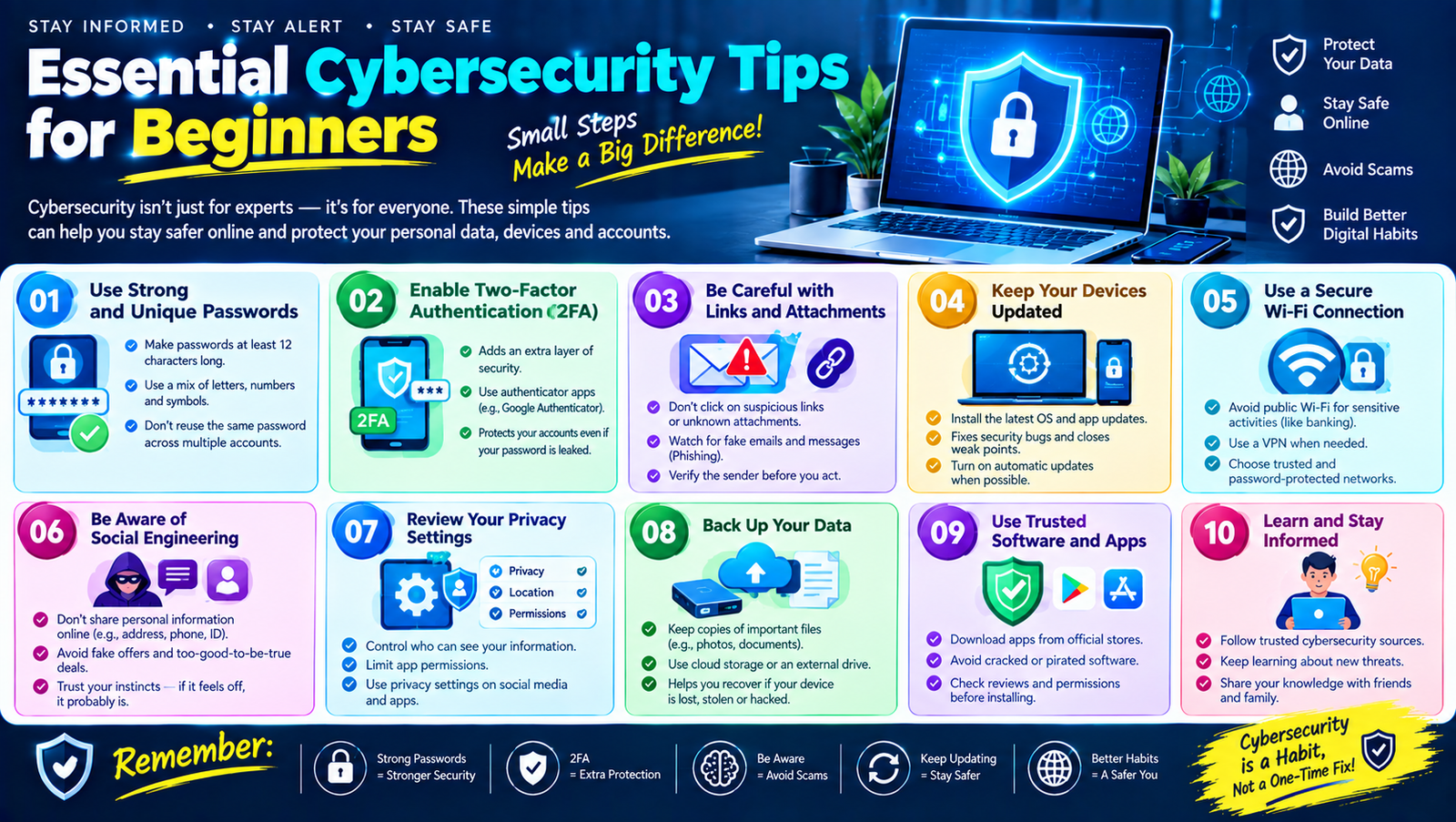
Using strong passwords, enabling two-factor authentication, keeping your devices updated, recognizing suspicious messages, avoiding unknown downloads, protecting personal information, and making regular backups can significantly improve your digital security.
This guide explains the most important cybersecurity tips for beginners in simple language. You don’t need to be a computer expert to follow them.
What Is Cybersecurity?
Cybersecurity is the practice of protecting computers, smartphones, networks, accounts, applications, and digital information from unauthorized access, misuse, damage, theft, or disruption.
It includes several areas, such as:
- Account security
- Password protection
- Device security
- Online privacy
- Network security
- Data protection
- Malware prevention
- Phishing awareness
- Backup and recovery
- Safe browsing
For everyday users, cybersecurity is mainly about building good habits.
You don’t need to understand every technical detail to make your online life safer.
Why Cybersecurity Matters for Everyone
You might think:
“I’m not important enough for hackers to target.”
This is a common misconception.
Cybercriminals may target ordinary users because personal accounts and information can have value.
An attacker might try to steal:
- Email accounts
- Social media accounts
- Passwords
- Financial information
- Personal documents
- Photos
- Contact lists
- Business information
- Cryptocurrency
- Online shopping accounts
Sometimes attackers don’t target a specific person at all. Automated systems can search for vulnerable accounts, devices, websites, or leaked credentials.
Good cybersecurity habits therefore matter whether you’re a student, employee, freelancer, business owner, content creator, or casual internet user.
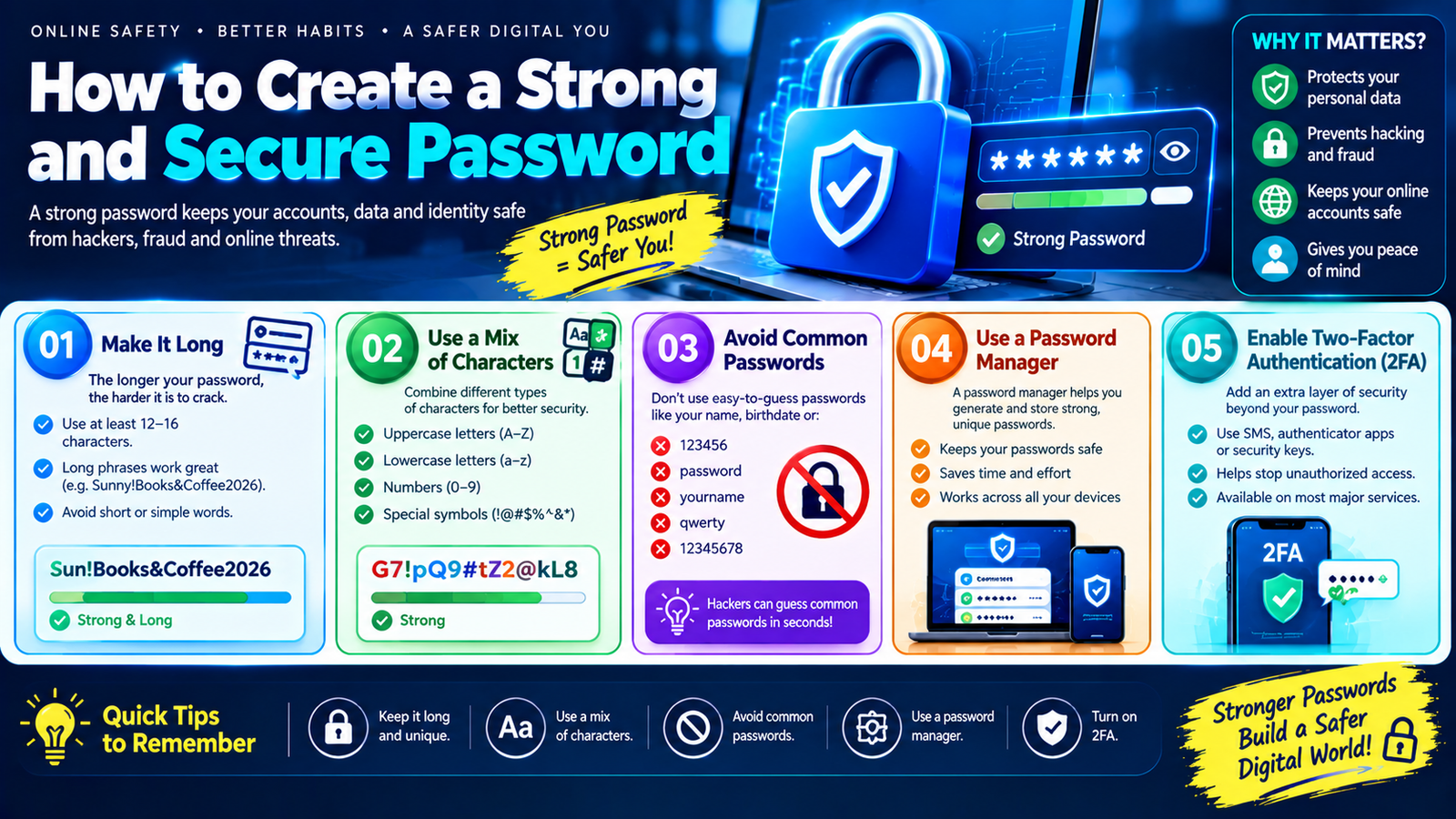
1. Create Strong and Unique Passwords
One of the most basic cybersecurity tips for beginners is to improve password security.
Avoid passwords that are:
- Very short
- Easy to guess
- Based on your name
- Based on your birthday
- Based on your phone number
- Used on multiple websites
A strong password should be long, unique, and difficult to predict.
Most importantly, don’t reuse the same password everywhere.
Imagine you use one password for your email, social media, and shopping account.
If that password becomes exposed through one service, an attacker may try it on the others.
Use a Password Manager
A reputable password manager can help you generate and store unique passwords.
This is much easier than trying to remember dozens of complicated passwords yourself.
2. Enable Two-Factor Authentication
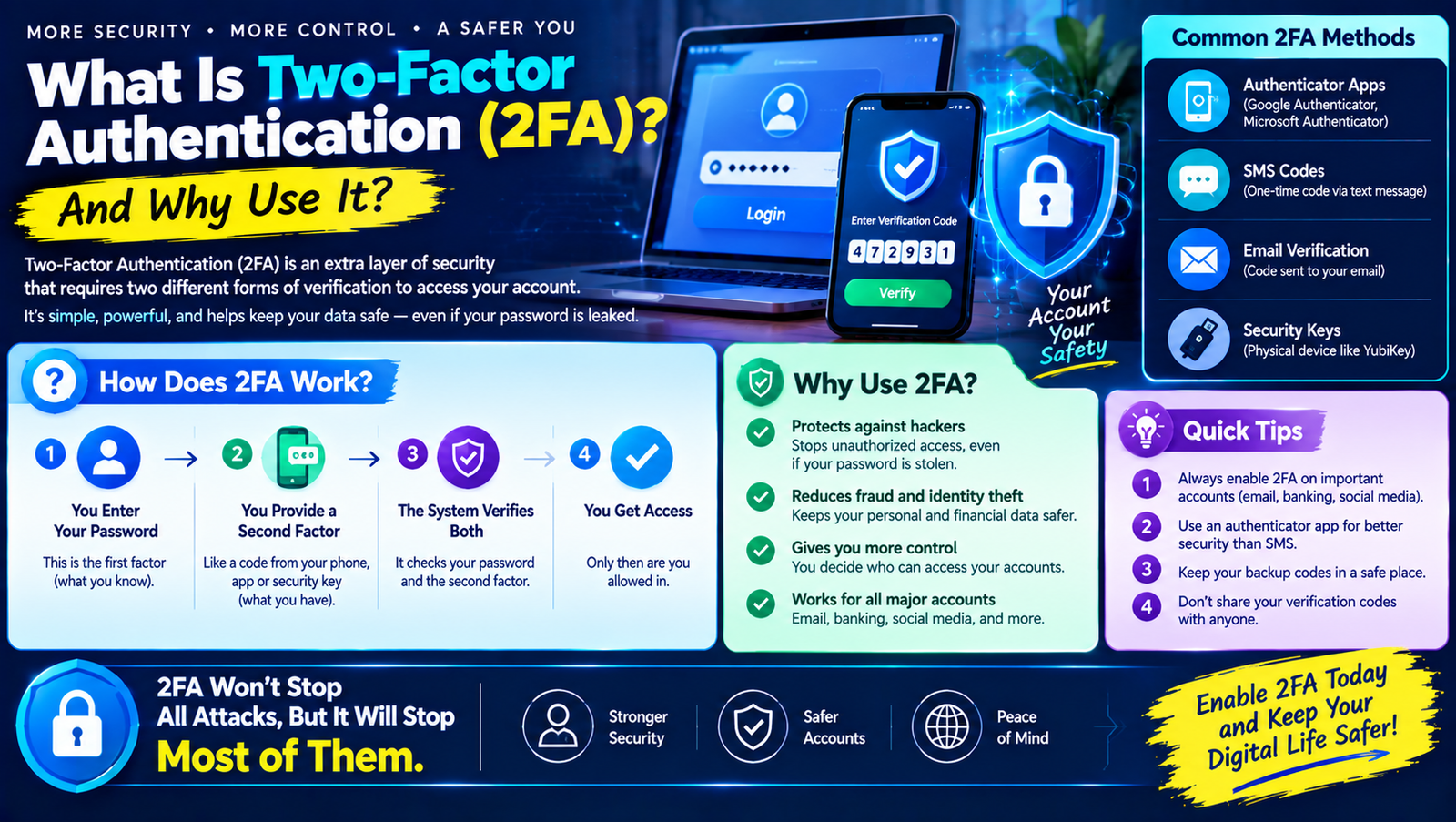
Two-factor authentication, commonly called 2FA, adds another layer of protection.
Instead of simply entering:
Username + Password
you may also need another verification method.
This could include:
- Authenticator app
- Security key
- Passkey
- Push approval
- Verification code
- Another supported authentication method
If someone obtains your password, the additional authentication factor may still prevent unauthorized access.
Start with your most important accounts, especially:
- Banking
- Social media
- Work accounts
- Cloud storage
3. Protect Your Email Account
Your email account is often more important than people realize.
It may be connected to dozens of other accounts.
If you forget your social media password, for example, a password-reset link may be sent to your email.
This means someone who controls your email may potentially attempt to take over other accounts.
Secure your email with:
- A unique password
- 2FA or MFA
- Updated recovery information
- Login alerts
- Regular security reviews
Your email should be one of the first accounts you secure.
4. Learn to Recognize Phishing
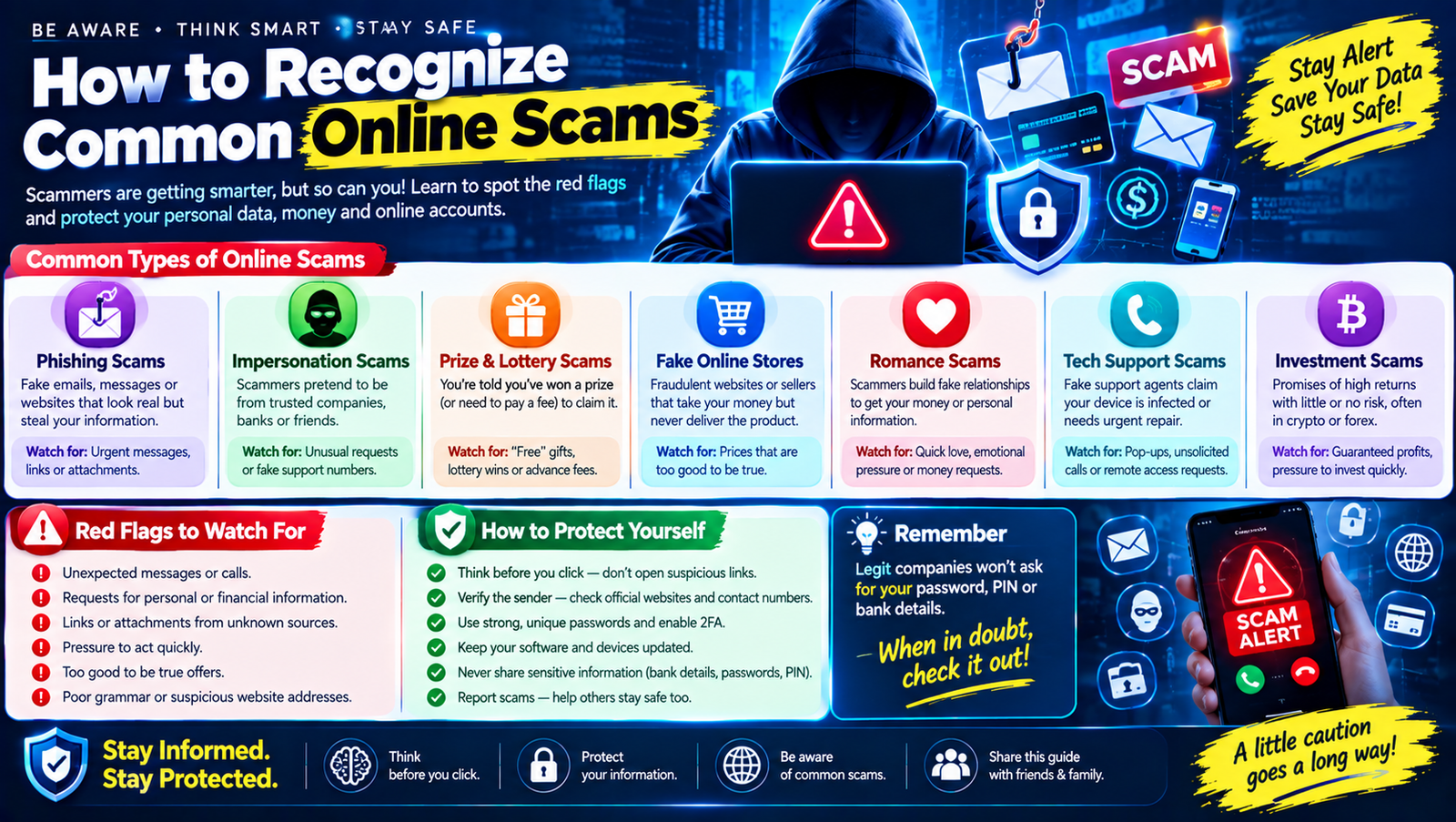
Phishing is a technique used to trick people into revealing information or performing an action.
A phishing message may look like it comes from:
- A bank
- A social media platform
- A delivery company
- A government organization
- A technology company
- A friend
- An employer
The message may ask you to click a link, open a file, log in, or send information.
Common Phishing Warning Signs
Watch for:
- Unexpected messages
- Urgent threats
- Suspicious links
- Requests for passwords
- Requests for verification codes
- Unusual payment requests
- Poorly written messages
- Unfamiliar sender addresses
- Pressure to act immediately
When in doubt, access the service through its official app or website instead of clicking the message link.
5. Don’t Share Verification Codes
Verification codes are sensitive.
A scammer may contact you and say:
“I need the code that was just sent to your phone.”
Don’t provide it.
That code could be part of an attempt to sign into your account or reset your password.
Treat verification codes like passwords.
Never share them with unexpected callers, messages, or supposed support representatives.
6. Keep Your Operating System Updated
Software updates aren’t only about new features.
They can also include security fixes.
Keep your:
- Windows PC
- macOS computer
- Android phone
- iPhone
- Tablet
updated according to the manufacturer’s security recommendations.
Also update important applications and browsers.
If your device supports automatic security updates, enabling them can make maintenance easier.
7. Update Your Web Browser
Your browser is one of the applications you use most frequently.
It handles:
- Websites
- Login sessions
- Downloads
- Cookies
- Web applications
- Online payments
Using an outdated browser can leave you exposed to known security problems.
Keep browsers such as Chrome, Edge, Firefox, Safari, or other reputable browsers updated.
Also remove extensions you no longer need.
8. Use a Screen Lock
A strong password won’t protect your data if someone can simply pick up your unlocked phone or laptop.
Use:
- PIN
- Password
- Fingerprint
- Face recognition
- Another secure device-locking method
Avoid leaving sensitive devices unlocked in public or shared environments.
Your physical device is part of your cybersecurity system.
9. Install Apps Carefully
Only install applications from trusted sources whenever possible.
Before installing an app, consider:
- Who developed it?
- Is it from an official app store?
- Does it have a legitimate purpose?
- What permissions does it request?
- Does it have a reasonable privacy policy?
- Is it regularly maintained?
Be cautious if an unrelated app requests access to information it doesn’t logically need.
For example, a simple flashlight application requesting access to extensive personal information should make you question why those permissions are necessary.
10. Be Careful With Downloads
Avoid downloading files from suspicious websites, unknown emails, random pop-ups, or untrusted sources.
Be especially careful with files such as:
- Executable programs
- Unknown installers
- Cracked software
- Pirated applications
- Suspicious browser extensions
- Unknown documents
Malware can sometimes be disguised as something useful.
If you don’t trust the source, don’t download the file.
11. Avoid Pirated and Cracked Software
Free software can be attractive, but pirated or modified software can introduce serious security risks.
A cracked application may contain:
- Malware
- Spyware
- Credential stealers
- Remote-access tools
- Other unwanted software
Even if the program appears to work correctly, you may not know what else was included.
Whenever possible, use legitimate software from trusted sources.
12. Be Careful With Public Wi-Fi
Public Wi-Fi can be useful in airports, hotels, cafés, universities, and other locations.
However, don’t automatically trust every network.
Attackers can sometimes create networks with names that look legitimate.
Before connecting:
- Verify the network name
- Ask staff when appropriate
- Avoid suspicious login pages
- Don’t ignore browser security warnings
- Avoid unnecessary sensitive activity on untrusted networks
If you need to perform highly sensitive tasks, consider using a trusted connection such as your mobile network when practical.
13. Use Secure Websites
When entering sensitive information online, check the website address carefully.
Make sure you’re on the legitimate domain.
Be especially careful with:
- Banking
- Shopping
- Social media
- Payment services
Remember that the presence of HTTPS alone does not prove that a website is legitimate. Scam websites can also use encrypted HTTPS connections.
Always verify the domain and context.
14. Protect Your Personal Information
Personal information can be valuable to scammers.
Be careful about publicly sharing:
- Full date of birth
- Home address
- Phone number
- Personal email
- Identification documents
- Financial information
- Travel plans
- Family information
- Security-question answers
You don’t need to hide everything.
The goal is to avoid unnecessarily exposing information that could be used for identity theft, social engineering, or targeted scams.
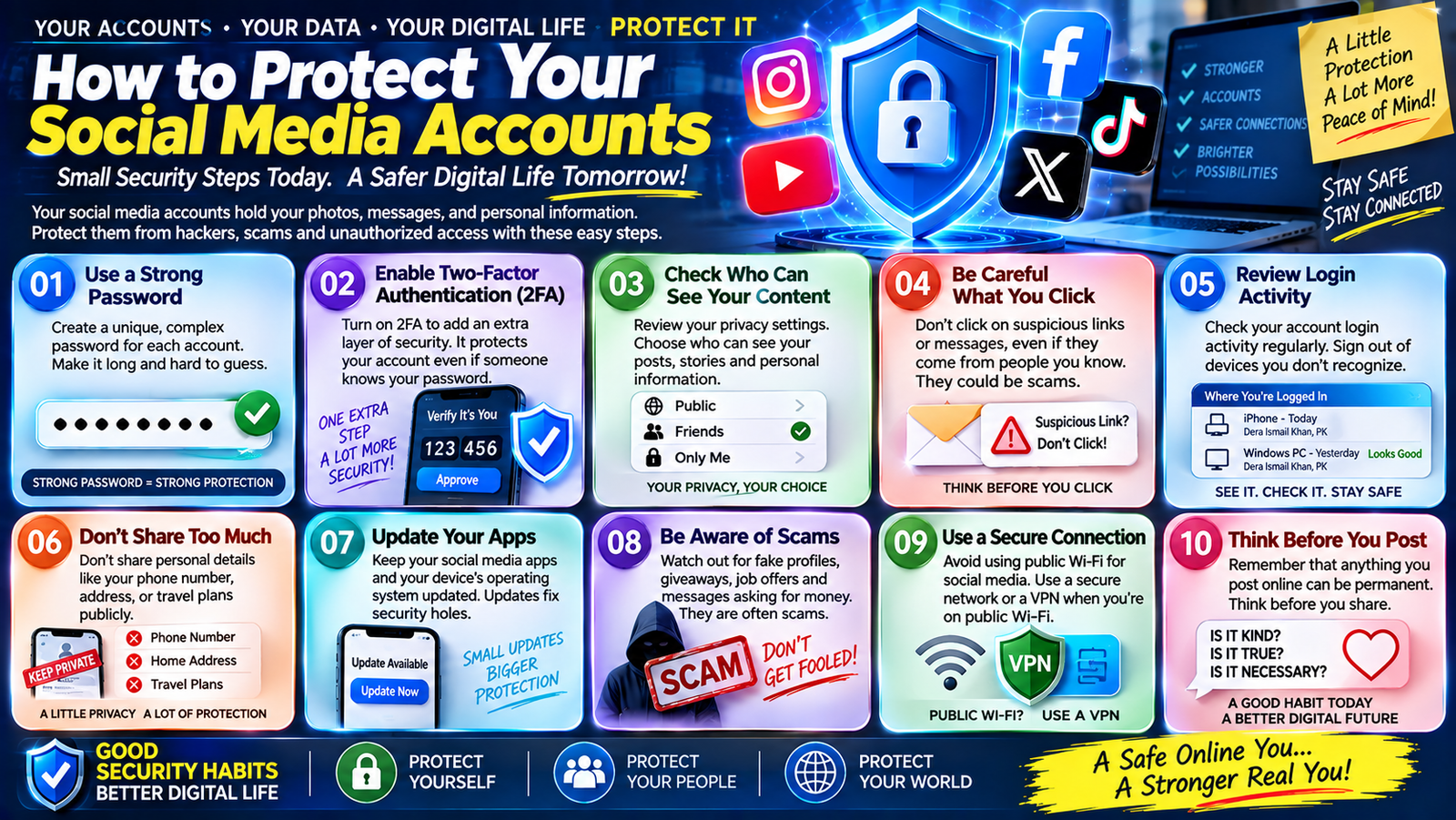
15. Review Social Media Privacy Settings
Social media platforms often provide controls that determine who can see your information.
Review settings for:
- Posts
- Stories
- Photos
- Friends/followers
- Phone numbers
- Email addresses
- Location information
- Profile visibility
Think carefully about what you want strangers to see.
A public profile isn’t necessarily unsafe, but it should be managed intentionally.
16. Be Careful With Social Engineering
Social engineering involves manipulating people rather than directly attacking technology.
An attacker might pretend to be:
- A bank employee
- A manager
- A friend
- Technical support
- A government official
- A delivery company
They may use urgency or authority to convince you to reveal information.
For example:
“I’m from your company’s IT department. Give me your verification code so I can fix your account.”
Don’t automatically trust someone because they sound professional.
Verify their identity independently.
17. Don’t Give Remote Access to Strangers
A common technical-support scam involves asking the victim to install remote-access software.
The scammer may claim:
“Your computer has a serious virus. I need to fix it.”
If you give a stranger remote access, they may be able to see or control parts of your computer.
Don’t allow remote access simply because someone claims to be from technical support.
If you genuinely need assistance, contact the company through its official website or support channel.
18. Back Up Important Data
Cybersecurity isn’t only about preventing attacks.
You should also prepare for the possibility that something goes wrong.
Back up important:
- Photos
- Documents
- Work files
- Financial records
- Important projects
- Other irreplaceable data
A backup can be useful if your device is lost, damaged, infected, or affected by ransomware.
Consider keeping backups in a way that isn’t permanently exposed to the same device or network.
19. Protect Important Files
Not every file needs the same level of protection.
For sensitive documents, consider:
- Secure storage
- Access controls
- Encryption where appropriate
- Strong device passwords
- Limited sharing
Be careful when uploading private documents to unfamiliar online services.
Before using a cloud service, understand how your information is stored and who can access shared files.
20. Use Security Software
Modern operating systems often include built-in security features.
Keep those protections enabled unless you have a specific reason to change them.
Security tools may help detect:
- Malware
- Suspicious files
- Dangerous websites
- Unwanted software
No security software can detect everything, so safe behavior is still important.
Think of security software as one layer rather than a complete solution.
21. Don’t Ignore Security Warnings
Your browser or operating system may warn you about:
- Suspicious websites
- Unsafe downloads
- Expired certificates
- Malicious files
- Security problems
Don’t automatically click through warnings just to reach a website.
Read the warning.
If you don’t understand it, stop and investigate before continuing.
22. Be Careful With Email Attachments
Unexpected attachments can contain malicious files.
Be cautious when receiving:
- Unknown ZIP files
- Executable files
- Unexpected documents
- Strange invoices
- Fake delivery notices
- Unexpected job applications
Even if the sender’s name looks familiar, their account could have been compromised.
If the attachment is unexpected, verify it through another communication method before opening it.
23. Don’t Use Unknown USB Devices
USB drives can potentially contain malicious software.
Don’t automatically plug an unknown USB device into your computer.
This is especially important if you find a USB drive somewhere or receive one from an unknown source.
Use trusted devices and scan removable storage when appropriate.
24. Secure Your Home Wi-Fi
Your home network connects phones, computers, smart TVs, cameras, and other devices.
Improve your Wi-Fi security by:
- Using a strong Wi-Fi password
- Changing default router credentials
- Keeping router firmware updated
- Using modern security settings supported by your router
- Reviewing connected devices
- Disabling unnecessary features
If you don’t recognize a connected device, investigate it.
25. Be Careful With Smart Devices
Smart TVs, cameras, speakers, watches, and other connected devices can also be part of your digital environment.
For smart devices:
- Change default passwords
- Install firmware updates
- Use reputable manufacturers
- Review permissions
- Disable features you don’t need
- Secure associated accounts
The more connected devices you have, the more important regular security maintenance becomes.
26. Don’t Trust “Too Good to Be True” Offers
Cybersecurity includes financial scam awareness.
Be suspicious of offers promising:
- Guaranteed profits
- Instant wealth
- Free expensive products
- Unrealistic discounts
- Easy money with no effort
- Guaranteed jobs
- Secret investment opportunities
Scammers often use attractive offers to get people to provide money or personal information.
Research independently before acting.
27. Secure Your Online Banking
Financial accounts deserve strong protection.
Use:
- Unique passwords
- MFA where available
- Official banking applications
- Login alerts
- Device security
Don’t access financial accounts through links in unexpected emails or messages.
Instead, open the official banking application or manually navigate to the legitimate website.
Never share banking passwords or verification codes with someone who contacts you unexpectedly.
28. Check Account Activity Regularly
Many online services provide security or login-history information.
Review important accounts periodically.
Look for:
- Unknown devices
- Unexpected locations
- Password changes
- New recovery information
- Unusual transactions
- Unfamiliar connected apps
If something doesn’t look right, investigate it.
29. Don’t Reuse Security Questions
Some older services still use security questions for account recovery.
Avoid answers that can easily be discovered through your public social media profile.
For example, if a question asks for your favorite pet and that information is publicly visible, it may be easier to guess.
If a service allows you to use more secure recovery methods, consider using them.
30. Learn the Basics of Safe Browsing
Safe browsing means thinking before you click.
Before visiting a suspicious website, ask:
- Do I know this website?
- How did I get here?
- Is the domain correct?
- Is it asking for unnecessary information?
- Is it offering something unrealistic?
- Does the page create unusual urgency?
Don’t assume that a professional-looking website is automatically trustworthy.
A Beginner Cybersecurity Checklist
Use this checklist to evaluate your current security:
| Security Area | What to Check |
|---|---|
| Passwords | Strong and unique |
| 2FA | Enabled on important accounts |
| Strongly protected | |
| Devices | Updated and locked |
| Browser | Updated |
| Apps | Installed from trusted sources |
| Wi-Fi | Secure |
| Backups | Important files backed up |
| Social media | Privacy settings reviewed |
| Downloads | Trusted sources only |
| Phishing | Suspicious links avoided |
| Recovery | Backup/recovery methods available |
What to Do If You Think You’ve Been Hacked
Don’t panic.
Start by identifying what may have happened.
If Your Account Was Compromised
- Change the password.
- Sign out unknown devices.
- Enable or review 2FA.
- Check recovery information.
- Review account activity.
- Remove suspicious connected applications.
- Contact official support if needed.
If Your Computer May Have Malware
- Disconnect from the internet if appropriate.
- Avoid entering passwords on the affected device.
- Run trusted security scans.
- Update the operating system and security software.
- Seek professional technical assistance if necessary.
- Change important passwords from a trusted device.
If Money Was Lost
Contact your bank or payment provider promptly and ask what recovery or dispute options may be available.
Keep transaction records and relevant messages.
How to Build a Simple Cybersecurity Routine
You don’t need to spend hours every day thinking about cybersecurity.
Create a simple routine.
Every Day
- Think before clicking links.
- Don’t share sensitive information.
- Be cautious with unexpected messages.
Every Month
- Review important account activity.
- Check connected applications.
- Install pending security updates.
- Review unusual login alerts.
Every Few Months
- Review privacy settings.
- Remove unused apps.
- Check old devices.
- Confirm your recovery information is current.
When Something Goes Wrong
Act quickly rather than ignoring the problem.
15 Essential Cybersecurity Rules for Beginners
If you remember only a few things from this article, remember these:
- Use strong and unique passwords.
- Enable 2FA or MFA.
- Protect your email account.
- Keep devices updated.
- Don’t click suspicious links.
- Never share verification codes.
- Download software from trusted sources.
- Avoid pirated software.
- Protect your personal information.
- Use screen locks on devices.
- Back up important files.
- Secure your home Wi-Fi.
- Be careful with public Wi-Fi.
- Review account activity.
- Slow down when something feels suspicious.
Cybersecurity Mistakes Beginners Should Avoid
Mistake 1: Using One Password Everywhere
One compromised password can put several accounts at risk.
Mistake 2: Ignoring Updates
Security updates exist for a reason.
Mistake 3: Clicking Without Checking
A familiar-looking message can still be fraudulent.
Mistake 4: Sharing Codes
Verification codes should remain private.
Mistake 5: Downloading Cracked Software
Unknown modifications can contain malware.
Mistake 6: Oversharing Online
Public information can sometimes help scammers create targeted attacks.
Mistake 7: Ignoring Backups
A problem becomes much worse when there is no way to recover important files.
Mistake 8: Trusting Someone Because They Sound Professional
Scammers can imitate professional language and authority.
Cybersecurity for Students
Students often use:
- Social media
- Cloud storage
- Online learning platforms
- Shared computers
- Public Wi-Fi
They should especially focus on:
- Strong passwords
- 2FA
- Safe downloads
- Phishing awareness
- Device security
- Secure cloud storage
Avoid sharing account credentials with classmates or friends.
Cybersecurity for Remote Workers
Remote workers should protect both personal and business information.
Important habits include:
- Use MFA
- Keep work devices updated
- Secure home Wi-Fi
- Avoid suspicious attachments
- Don’t use unauthorized software
- Follow company security policies
- Lock your computer when away
Be particularly careful when handling customer or company data.
Cybersecurity for Small Businesses
Small businesses can be attractive targets because they may have valuable information but limited security resources.
Businesses should consider:
- MFA for employees
- Password managers
- Regular backups
- Access controls
- Software updates
- Employee cybersecurity training
- Security monitoring
- Incident-response procedures
Employees should receive clear instructions about phishing and suspicious requests.
Frequently Asked Questions
What are the most important cybersecurity tips for beginners?
Start with strong unique passwords, 2FA, software updates, phishing awareness, secure devices, regular backups, and careful handling of personal information.
Do I need antivirus software?
Modern operating systems often include built-in security protections. Additional security software may be useful depending on your device and needs, but safe online behavior remains essential.
Can strong passwords prevent hacking?
Strong passwords make unauthorized access more difficult, but no password provides complete protection. Combine strong passwords with MFA and other security practices.
Is public Wi-Fi dangerous?
Public Wi-Fi isn’t automatically dangerous, but unfamiliar networks require caution. Verify the network and avoid unnecessary sensitive activity on networks you don’t trust.
How often should I change my passwords?
A strong, unique password doesn’t necessarily need to be changed on a fixed schedule. Change it when you suspect it has been exposed, compromised, shared, or when the service recommends doing so.
What should I do if I click a suspicious link?
Stop interacting with the page. If you entered credentials, change the affected password through the legitimate website. If you provided financial information, contact the relevant financial institution promptly.
How can I protect my phone from hackers?
Use a screen lock, install updates, download apps from trusted sources, review app permissions, avoid suspicious links, and protect important accounts with MFA.
Are backups part of cybersecurity?
Yes. Backups help you recover important information if a device is lost, damaged, compromised, or affected by destructive malware.
Can social media information be used against me?
Public information can sometimes help attackers create convincing social-engineering messages. Limit unnecessary sensitive information and review your privacy settings.
What is the first cybersecurity step a beginner should take?
Start by securing your primary email account with a strong unique password and MFA. Then gradually secure your other important accounts.
Final Thoughts
Cybersecurity may sound complicated, but many of the most effective habits are surprisingly simple.
The key is to build layers.
Start with strong and unique passwords. Use a password manager if helpful. Enable two-factor authentication on important accounts. Protect your email. Keep your phone, computer, browser, and applications updated.
Learn how phishing works and don’t automatically trust unexpected messages, links, attachments, or urgent requests.
Protect your personal information and think carefully about what you publish publicly. Use screen locks, secure your home Wi-Fi, download software only from trusted sources, and avoid pirated applications.
Don’t forget about backups. Even with good security practices, things can sometimes go wrong. Having copies of important files can make recovery much easier.
Most importantly, don’t think of cybersecurity as something only technical experts need to understand.
Every internet user needs basic cybersecurity habits.
You don’t need to become a cybersecurity professional. You simply need to develop a few smart routines and use the security features already available to you.
Start today with the basics:
Strong passwords.
Two-factor authentication.
Updated devices.
Safe browsing.
Phishing awareness.
Secure backups.
Privacy awareness.
These simple steps can make your digital life safer and help you use the internet with greater confidence.

Leave a Reply