

Meta Title: What Is Two-Factor Authentication and Why Use It? Complete Guide
Meta Description: Learn what two-factor authentication is, how 2FA works, why it protects your accounts, and which authentication methods beginners should use for better online security.
Focus Keyword: what is two-factor authentication
Secondary Keywords: two-factor authentication, 2FA, how 2FA works, two-factor authentication benefits, account security, online security, MFA, authentication methods
Suggested URL Slug:/what-is-two-factor-authentication-and-why-use-it/
Introduction
A password is usually the first thing protecting an online account. But what happens if someone gets your password?
This is where two-factor authentication, commonly called 2FA, becomes important.
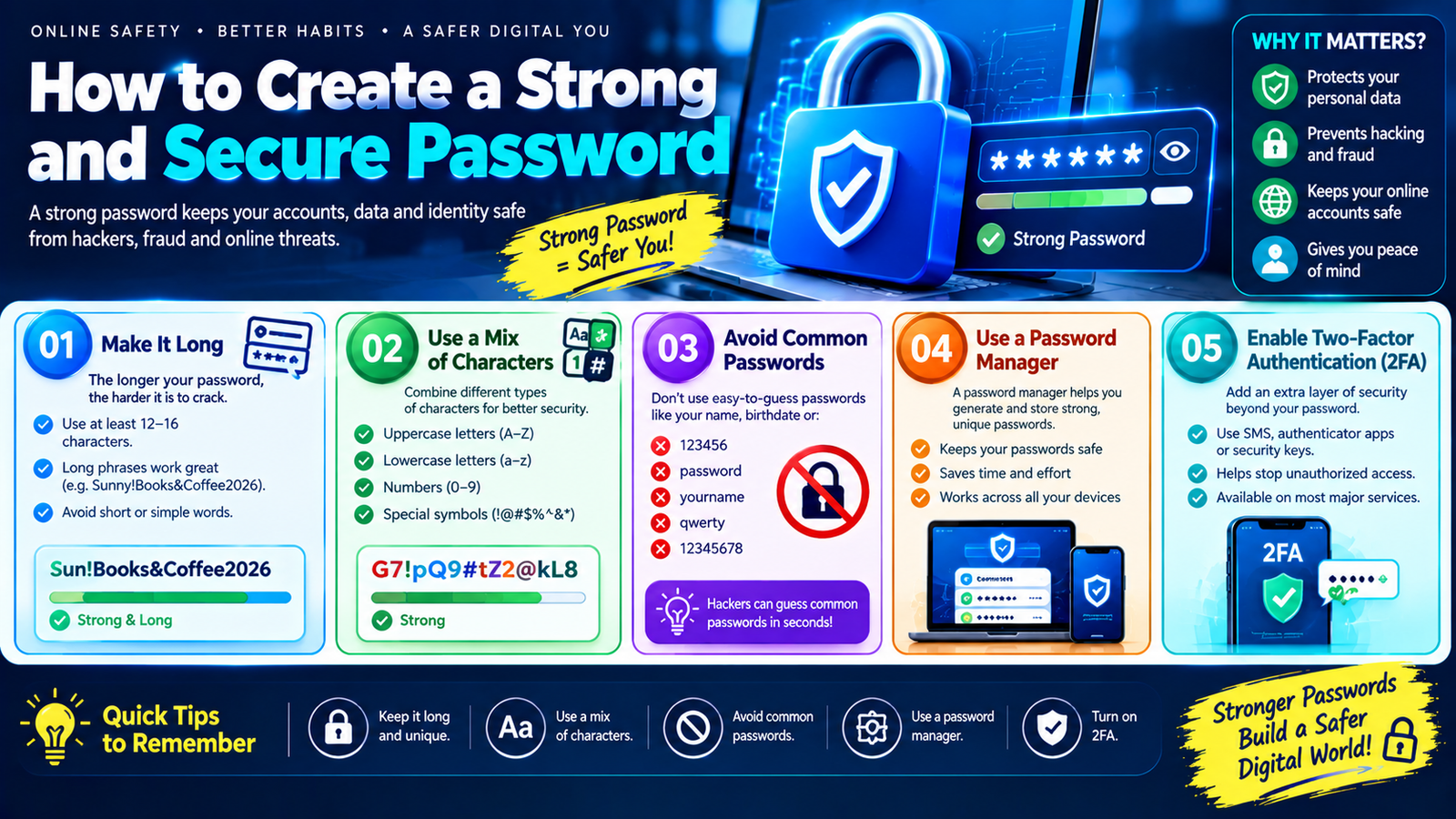
Two-factor authentication adds another verification step when you sign in. Instead of relying only on something you know, such as a password, the account asks for another type of proof that helps confirm you are really the person trying to access it.
For example, after entering your password, a service might ask you to approve a login through an authenticator app or use another supported verification method.
This additional layer can make a stolen password less useful to an attacker.
Two-factor authentication is now an important part of online security for many people. It can be particularly valuable for email, social media, financial services, work accounts, cloud storage, and other accounts containing sensitive information.
In this guide, we’ll explain what two-factor authentication is, how it works, the different types of 2FA, why it matters, common mistakes to avoid, and how beginners can start using it.
What Is Two-Factor Authentication?
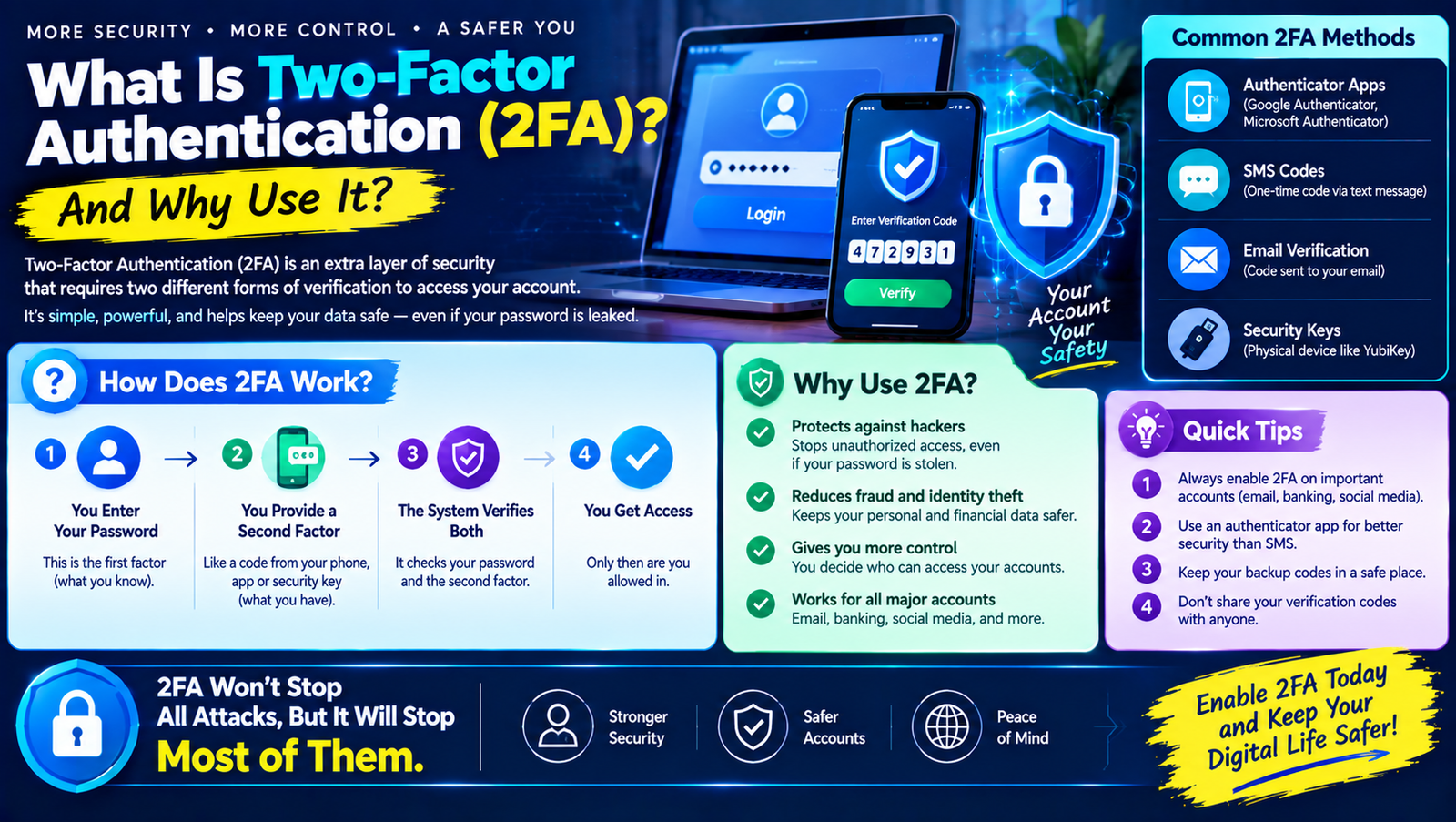
Two-factor authentication is a security method that requires two different authentication factors before allowing access to an account.
The basic idea is simple.
Normally, you might log in like this:
Username + Password = Access
With two-factor authentication, the process becomes:
Username + Password + Second Factor = Access
The second factor provides another layer of verification.
For example:
- Enter your username.
- Enter your password.
- Approve the login with an authenticator app or another supported method.
- Access your account.
If an attacker knows your password but cannot complete the second authentication step, they may be unable to sign in.
What Does “Factor” Mean?
The word factor refers to a type of evidence used to verify your identity.
Authentication factors are commonly grouped into categories.
1. Something You Know
This is information you remember.
Examples include:
- Password
- PIN
- Passphrase
- Security question
Your password is usually an example of a knowledge factor.
2. Something You Have
This means something in your possession.
Examples include:
- Smartphone
- Security key
- Authenticator app
- Hardware token
- Registered device
3. Something You Are
This refers to biometric characteristics.
Examples include:
- Fingerprint
- Face recognition
- Other supported biometric authentication
True two-factor authentication generally uses two different categories of factors.
Simply asking for two passwords does not create two-factor authentication because both are based on the same type of factor: something you know.
How Does 2FA Work?
The exact process depends on the service and authentication method.
A typical login might look like this:
Step 1: Enter Your Username
You provide your email address, username, or other account identifier.
Step 2: Enter Your Password
The service checks whether your password is correct.
Step 3: Complete the Second Factor
The account then requests another verification step.
This might be:
- A code from an authenticator app
- Approval on a trusted device
- A security key
- A passkey
- A biometric confirmation
- Another supported authentication method
Step 4: Access Is Granted
If the second factor is successfully verified, the service allows you to continue.
This process adds another barrier between an attacker and your account.
Why Is Two-Factor Authentication Important?
Passwords can be stolen in many ways.
For example, attackers may obtain credentials through:
- Phishing
- Data breaches
- Malware
- Password reuse
- Credential stuffing
- Fake websites
- Social engineering
- Insecure devices
Even if you create a strong password, there is still a possibility that the password could eventually be exposed.
2FA helps because the password is no longer the only thing required for authentication.
Imagine that your password is accidentally exposed.
Without 2FA:
Password stolen → Account may be accessible
With 2FA:
Password stolen → Attacker may still need the second factor
This doesn’t make an account invulnerable, but it adds another important security layer.
Two-Factor Authentication vs. Multi-Factor Authentication
You may also hear the term MFA, which stands for multi-factor authentication.
The terms are related but not always identical.
2FA
Requires two authentication factors.
MFA
Uses two or more authentication factors.
For example:
Password + Authenticator App
can be considered 2FA.
A system requiring:
Password + Security Key + Biometric Verification
uses multiple authentication factors and can be described as MFA.
Many companies use the term MFA when discussing account security, while websites may specifically call their feature 2FA.
Common Types of Two-Factor Authentication
There are several ways services can implement an additional authentication factor.
Let’s look at some common options.
1. Authenticator Apps
Authenticator apps generate temporary verification codes or provide approval-based authentication.
A typical process is:
- You install an authenticator app.
- You connect it to your account.
- You sign in with your password.
- The service asks for a code or approval.
- You complete the second step through the authenticator.
One benefit is that an authenticator app does not necessarily depend on receiving a text message every time.
Some authenticator systems can generate codes without an active mobile connection.
2. SMS Verification Codes
Some services send a temporary code to your registered phone number.
For example:
Your verification code: 482913
You enter the code after entering your password.
SMS-based authentication can be better than having no additional verification, but it has security limitations.
Phone numbers can potentially be targeted through attacks such as SIM swapping or social engineering.
Therefore, if a service offers a stronger authentication option, you may want to consider it.
3. Push Notifications
Some services can send an authentication request to a trusted device.
You may see a notification such as:
“Are you trying to sign in?”
You can then approve or deny the request.
This can be convenient because you don’t have to manually type a code.
However, don’t approve a login request you did not initiate.
Repeated unexpected approval requests can be a sign that someone is attempting to access your account.
4. Security Keys
Security keys are physical devices designed for authentication.
You connect or tap the security key when signing in, depending on the device and service.
Security keys can provide strong protection against certain types of phishing because the authentication process can be tied to the legitimate website.
They can be particularly useful for people who manage sensitive accounts or work in environments with stronger security requirements.
5. Passkeys
Passkeys are a newer authentication approach designed to reduce reliance on traditional passwords.
Depending on the platform, you may authenticate using:
- Fingerprint
- Face recognition
- Device PIN
- Screen lock
- Security key
Passkeys use cryptographic credentials rather than requiring you to type a traditional password every time.
Their availability and exact behavior depend on the service, device, and platform.
If a service supports passkeys, review its official setup and recovery options before enabling them.
6. Backup Codes
Many services provide backup codes when you activate 2FA.
These are usually one-time codes that can help you access your account if you lose your normal second-factor device.
For example, you may receive several emergency codes.
Keep them somewhere secure.
Do not:
- Post them online
- Send them to strangers
- Store them in a public document
- Share screenshots publicly
Treat backup codes as sensitive account-recovery information.
Which 2FA Method Should You Use?
There isn’t one method that works identically for everyone.
Your choice depends on the services you use, the authentication methods they support, and your personal circumstances.
A general comparison looks like this:
| Method | Convenience | Security Considerations |
|---|---|---|
| SMS code | Easy | Phone-number attacks can be a concern |
| Authenticator app | Convenient | Device access must be protected |
| Push notification | Very convenient | Don’t approve unexpected requests |
| Security key | Strong | Physical device must be available |
| Passkey | Convenient | Depends on platform and recovery options |
| Backup codes | Emergency option | Must be stored securely |
The important point is to use an additional authentication method rather than leaving important accounts protected only by a password.
Which Accounts Should Have 2FA?
Ideally, enable stronger authentication on as many important accounts as practical.
Start with the accounts that could cause the most damage if compromised.
1. Email
Your primary email should be a top priority.
Why?
Because your email account may be used to reset passwords for other services.
If someone gains control of your email, they may potentially attempt to take over other accounts.
2. Financial Accounts
Use every security feature provided by your bank or financial service.
Follow the organization’s official security recommendations.
3. Social Media
Social media accounts may contain:
- Private messages
- Photos
- Contacts
- Business information
- Personal information
Protect them with strong authentication.
4. Cloud Storage
Cloud accounts can contain documents, photos, backups, and other sensitive information.
5. Work Accounts
Business email, project systems, and cloud platforms may contain company information.
6. Shopping Accounts
If your shopping account contains payment details or personal information, additional protection can be useful.
How to Enable Two-Factor Authentication
The exact steps differ from one service to another, but the general process is similar.
Step 1: Open Account Settings
Sign in to the official website or app.
Step 2: Find Security Settings
Look for options such as:
- Security
- Login and Security
- Account Protection
- Two-Step Verification
- Two-Factor Authentication
- Multi-Factor Authentication
Step 3: Choose a Method
Select one of the authentication methods offered by the service.
Step 4: Follow the Setup Instructions
The service may ask you to scan a QR code, register a device, confirm a phone number, add a security key, or create a passkey.
Step 5: Save Recovery Information
If backup codes are provided, store them securely.
Step 6: Test the Login
Make sure you understand how the authentication process works before you sign out.
Don’t Approve Unexpected Login Requests
One common mistake is blindly approving authentication notifications.
Imagine you are sitting at home and suddenly receive:
“Approve sign-in?”
If you didn’t try to sign in, don’t approve it.
Someone may be attempting to log in using your password.
This can happen when attackers repeatedly attempt to trigger authentication requests in the hope that the account owner eventually clicks “Approve.”
If you receive unexpected requests repeatedly, change your password and review your account security.
Can 2FA Be Hacked?
No security system should be described as completely impossible to bypass.
2FA significantly improves account security, but attackers may attempt to target the second factor or trick users into revealing it.
Possible threats include:
- Phishing
- Social engineering
- SIM swapping
- Fake login pages
- Malware
- Stolen devices
- Authentication fatigue attacks
- Account recovery abuse
This is why users should understand how their authentication system works.
Never assume that having 2FA means you can safely click every link or share every verification code.
Never Share Verification Codes
One of the most important 2FA rules is:
Never give a verification code to someone who contacts you unexpectedly.
A scammer may say:
“I’m calling from support. Please tell me the code you just received.”
The code may actually be needed to access your account.
If someone asks for a login verification code, stop and verify the request through an official channel.
Your bank, social media company, email provider, or other service should not require you to give a random caller the code sent to your device.
Beware of Fake 2FA Pages
Attackers can create fake websites that imitate legitimate login pages.
For example:
- You receive a fake email.
- You click a link.
- A page looks like your normal login screen.
- You enter your username and password.
- The fake website asks for your 2FA code.
- The attacker receives the information.
This is why you should be careful about links in unexpected emails and messages.
When possible, open the official website or app directly.
What Happens If You Lose Your Phone?
This is one of the biggest concerns for people using authenticator apps.
Before enabling 2FA, understand the account’s recovery options.
Depending on the service, you may have:
- Backup codes
- A second trusted device
- Recovery email
- Security key
- Passkey synchronization
- Account recovery process
Don’t wait until you lose your phone to discover that you have no recovery method.
Keep Your Devices Secure
Your second factor is only useful if the device containing it is protected.
Use:
- Screen lock
- PIN
- Fingerprint
- Face authentication
- Device encryption where available
- Current security updates
Avoid leaving your phone or computer unlocked where other people can access it.
If your authentication app is on your phone, protecting the phone itself becomes part of your account security.
2FA for Businesses
Businesses can benefit significantly from stronger authentication.
Employees often access:
- Company email
- Cloud storage
- Customer information
- Internal applications
- Financial systems
- Project management platforms
A stolen password can potentially provide an attacker with access to business resources.
Organizations can improve security by:
- Requiring MFA for sensitive accounts
- Providing employee training
- Using centralized identity management
- Monitoring suspicious login attempts
- Applying appropriate access controls
- Establishing account-recovery procedures
Companies should also train employees not to approve unexpected authentication requests.
2FA and Remote Work
Remote workers often access company systems from home, hotels, cafés, and other locations.
This increases the importance of strong account authentication.
A remote worker should:
- Use MFA where required
- Protect their laptop with a strong login
- Keep operating systems updated
- Avoid suspicious Wi-Fi networks when possible
- Be careful with phishing emails
- Never share verification codes
- Follow company security policies
MFA doesn’t replace other security measures, but it adds another layer.
Common 2FA Mistakes
Even when people activate two-factor authentication, they can make mistakes.
Mistake 1: Sharing a Verification Code
Never share codes with strangers or unexpected callers.
Mistake 2: Approving Unknown Requests
Don’t approve login requests you didn’t initiate.
Mistake 3: Losing Backup Codes
Store them securely.
Mistake 4: Using Only SMS When Better Options Exist
SMS can provide useful protection, but stronger options may be available depending on the service.
Mistake 5: Ignoring Security Notifications
Unexpected login alerts should be investigated.
Mistake 6: Forgetting Account Recovery
Know how you will regain access if you lose your device.
Mistake 7: Trusting Every Login Page
A fake website can still trick you into entering both your password and verification code.
2FA vs. Password: What’s the Difference?
The easiest way to understand the difference is to think about layers.
Password Only
You prove your identity with something you know.
Password → Access
Password + 2FA
You provide a password and another authentication factor.
Password → Second Factor → Access
This means an attacker generally has more to overcome.
The second layer can be especially valuable when passwords are stolen through phishing, breaches, or reuse.
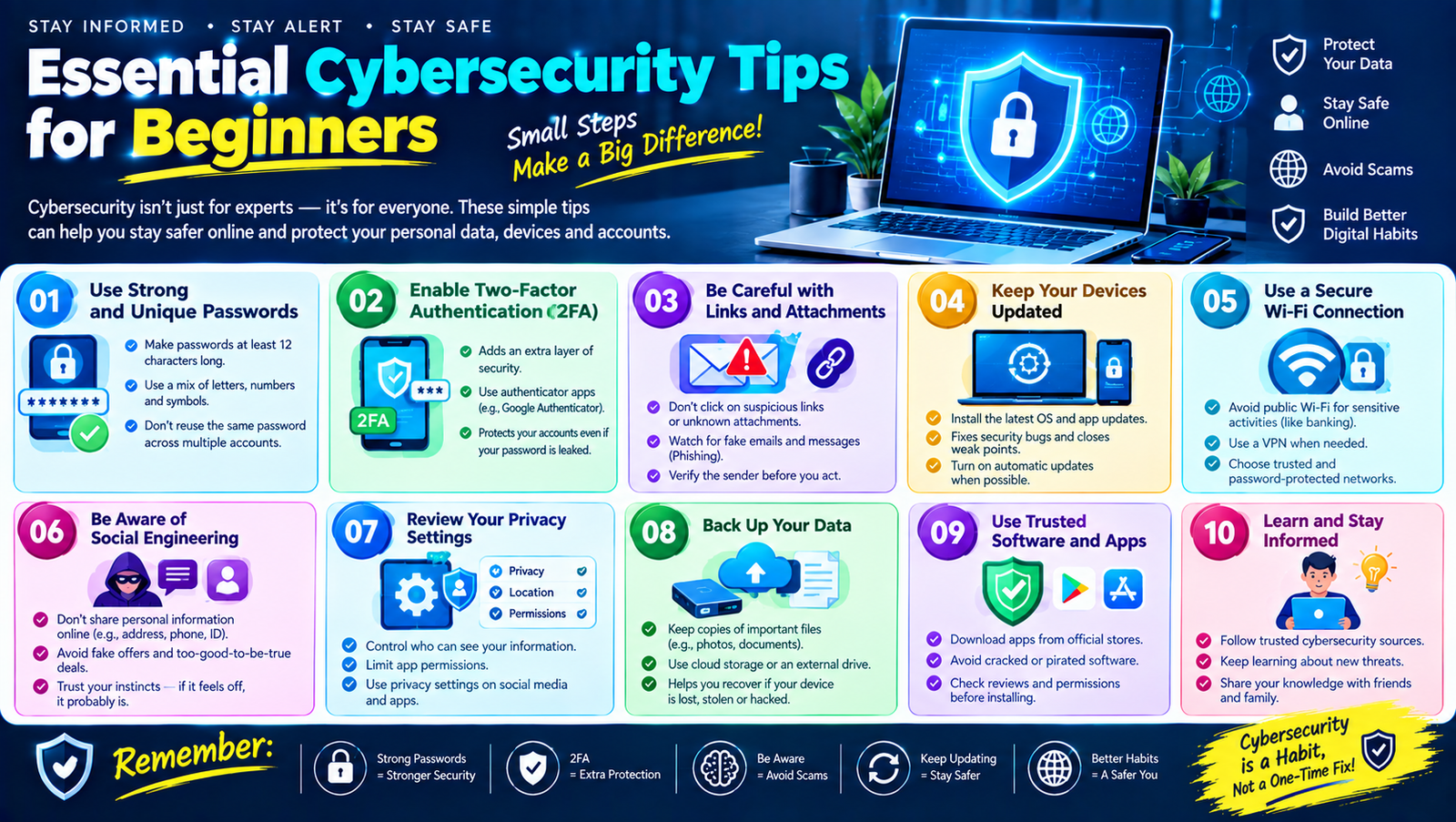
A Simple 2FA Security Checklist
Use this checklist to improve your account security:
- Secure your primary email account
- Enable 2FA or MFA
- Use unique passwords
- Use a password manager where appropriate
- Save backup codes securely
- Don’t share verification codes
- Don’t approve unexpected login requests
- Protect your smartphone
- Keep your devices updated
- Review account activity regularly
- Learn how to recover your account
- Be careful with suspicious login links
You don’t have to change everything at once.
Start with your email and most important accounts.
A Beginner-Friendly Account Security Routine
Here’s a simple routine you can follow.
Week 1: Secure Your Email
Create a strong, unique password and enable 2FA.
Week 2: Secure Social Media
Review Facebook, Instagram, TikTok, X, and other accounts you actively use.
Week 3: Secure Financial Accounts
Check the security features available through your bank or financial services.
Week 4: Secure Cloud and Work Accounts
Review Google, Microsoft, Apple, cloud storage, and work accounts.
This gradual approach makes account security easier to manage.
Frequently Asked Questions
What is two-factor authentication?
Two-factor authentication is a security method that requires two different authentication factors before allowing access to an account.
Is 2FA the same as MFA?
Not exactly. 2FA specifically uses two authentication factors, while MFA is a broader term for using multiple authentication factors.
Is 2FA worth using?
Adding another authentication factor can provide an important additional layer of protection against unauthorized access, particularly when passwords are compromised.
Is SMS 2FA secure?
SMS verification can provide additional protection compared with using only a password, but it has known security limitations. If a service provides stronger alternatives, consider reviewing those options.
What is the safest 2FA method?
The appropriate method depends on the service, device, and your circumstances. Security keys and modern phishing-resistant authentication methods can provide strong protection, while authenticator apps and other options may also be useful.
What happens if I lose my phone?
Recovery options depend on the service. Before enabling 2FA, save backup codes and understand the account’s recovery process.
Can hackers bypass 2FA?
Attackers can attempt to bypass or defeat authentication through phishing, social engineering, stolen devices, SIM-related attacks, and account-recovery abuse. 2FA improves security but does not eliminate every threat.
Should I use 2FA on social media?
Yes, when available. Social media accounts can contain valuable personal and business information.
Should my email have 2FA?
Your primary email is one of the most important accounts to protect because it may be used to reset passwords for other accounts.
Can I use an authenticator app without internet?
Many authenticator apps can generate time-based codes without an active internet connection, but the exact behavior depends on the authentication system and app.
Final Thoughts
Understanding what two-factor authentication is is an important step toward better online security.
Passwords remain an important part of account protection, but passwords alone can be exposed through phishing, data breaches, password reuse, and other attacks.
Two-factor authentication adds another layer by requiring an additional form of verification.
For beginners, a simple strategy is to start with your most important accounts—especially your primary email, financial accounts, work accounts, social media, and cloud storage.
Use unique passwords, enable 2FA or MFA where available, protect your authentication devices, save recovery information securely, and never share verification codes with unexpected callers or messages.
Remember that no single security feature provides complete protection. Good cybersecurity comes from combining multiple habits.
A strong password is one layer.
Two-factor authentication is another.
Careful browsing, secure devices, software updates, phishing awareness, and sensible account-recovery practices add even more protection.
The best time to secure an important account is before something goes wrong. Start with one account today, enable its strongest practical authentication option, and gradually work through the rest of your important accounts.

Leave a Reply